Running the mall
Online orders & the pull list
When a shopper pays online, the item is sold — but it’s still sitting in a booth. The pull list tells your staff what to go get.
The pull list
Back office → Pull list. Every paid online item that hasn’t been taken off the floor yet, sorted by booth so you can walk the aisles once. The number beside “Pull list” in the menu tells you how many are waiting.
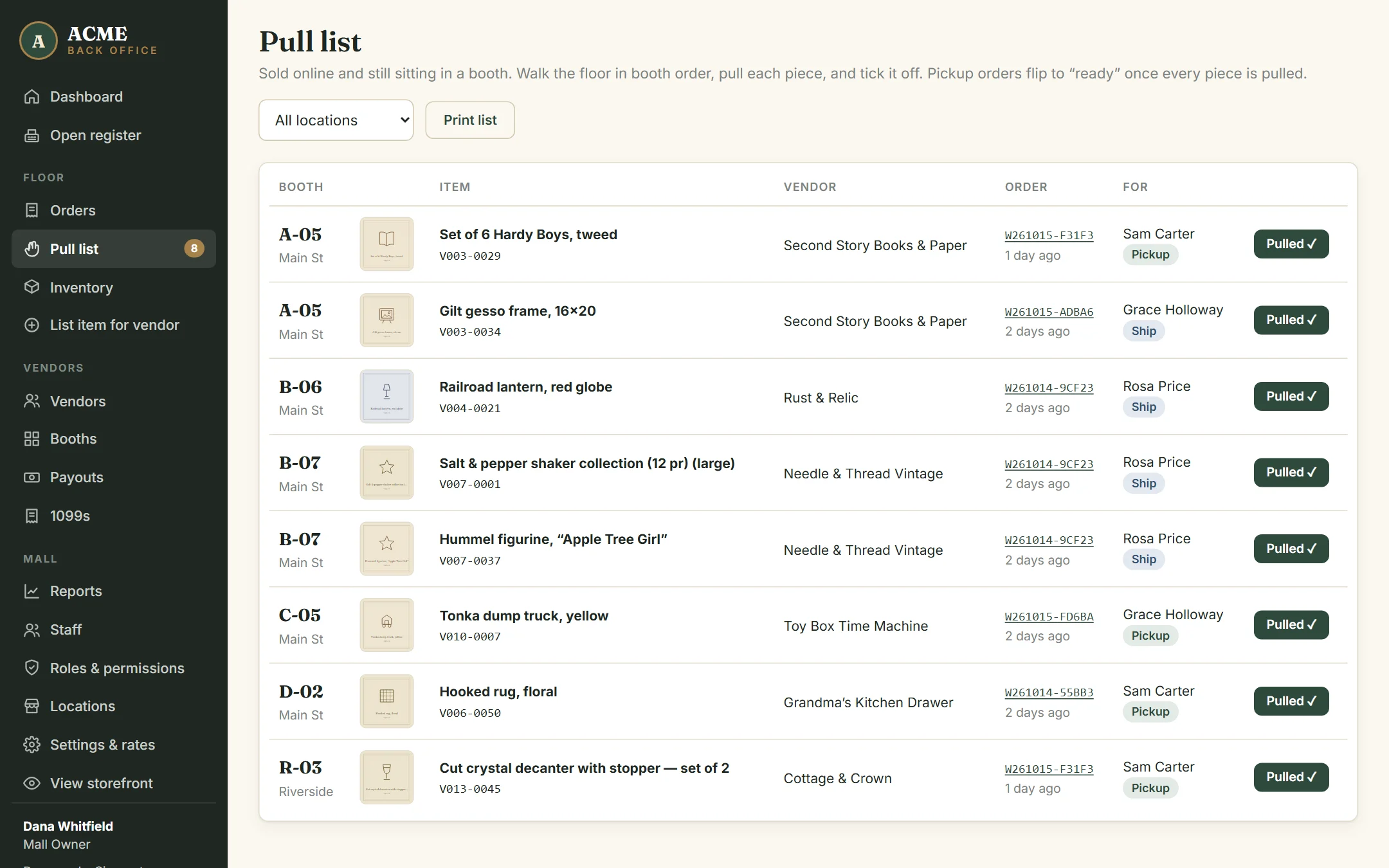
- Walk to the booth, find the item by its tag and SKU.
- Click Pulled ✓.
- For pickup orders: once every item in the order is pulled, the order changes to Ready for pickup automatically.
Use Print list to take it on paper.
Handing over pickups
When the customer arrives, open the order (search their name in Orders) and click Picked up.
The Orders search also finds sales by order number, check number or gift certificate number.
Shipping orders
Pack the item, open the order, enter the tracking number and click Mark shipped. When it arrives, click Delivered. The tracking number shows in the shopper’s order history.
Reading an order
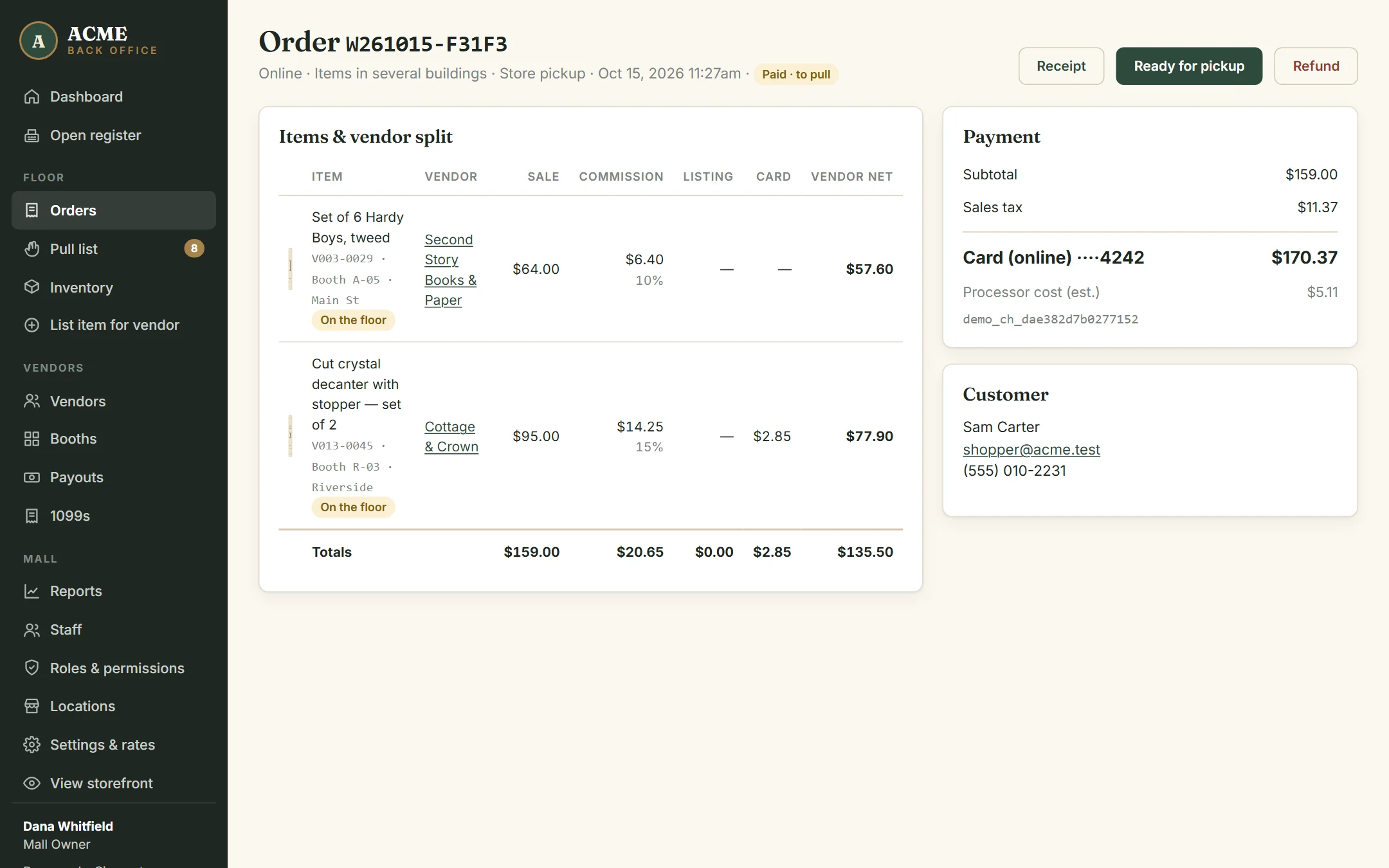
Each order shows the customer, how they paid, and for every item: the dealer, the booth, the commission, listing fee, card fee and what the dealer receives. If an item was sold below its tag price at the register, the tag price is shown underneath.
Refunds
Open the order and click Refund. AllAisles:
- Puts every item back on sale (in the store and online).
- Removes the sale from the dealer’s next payout — or, if you’ve already paid them for it, adds a matching deduction to their next statement.
Return the customer’s money the same way they paid (cash from the drawer, or a refund on your card terminal). Only roles with Refund orders see the button.